Owner · 4 min read
Connect Google Ads lead forms
What you'll get
Paste the URL and key into your lead form's webhook delivery and send test data.
Before you start
- Owner sign-in on the web.
- Edit access to the Google Ads campaign that carries the lead form.
- Who
- Owner
- Read time
- 4 minutes
Step 1: Switch on the Google Ads card
Open Setup › Integrations. Under 'Integration library', find 'Google Ads lead form' and click 'Enable'. Copy both values: 'Copy URL', then 'Copy key'.
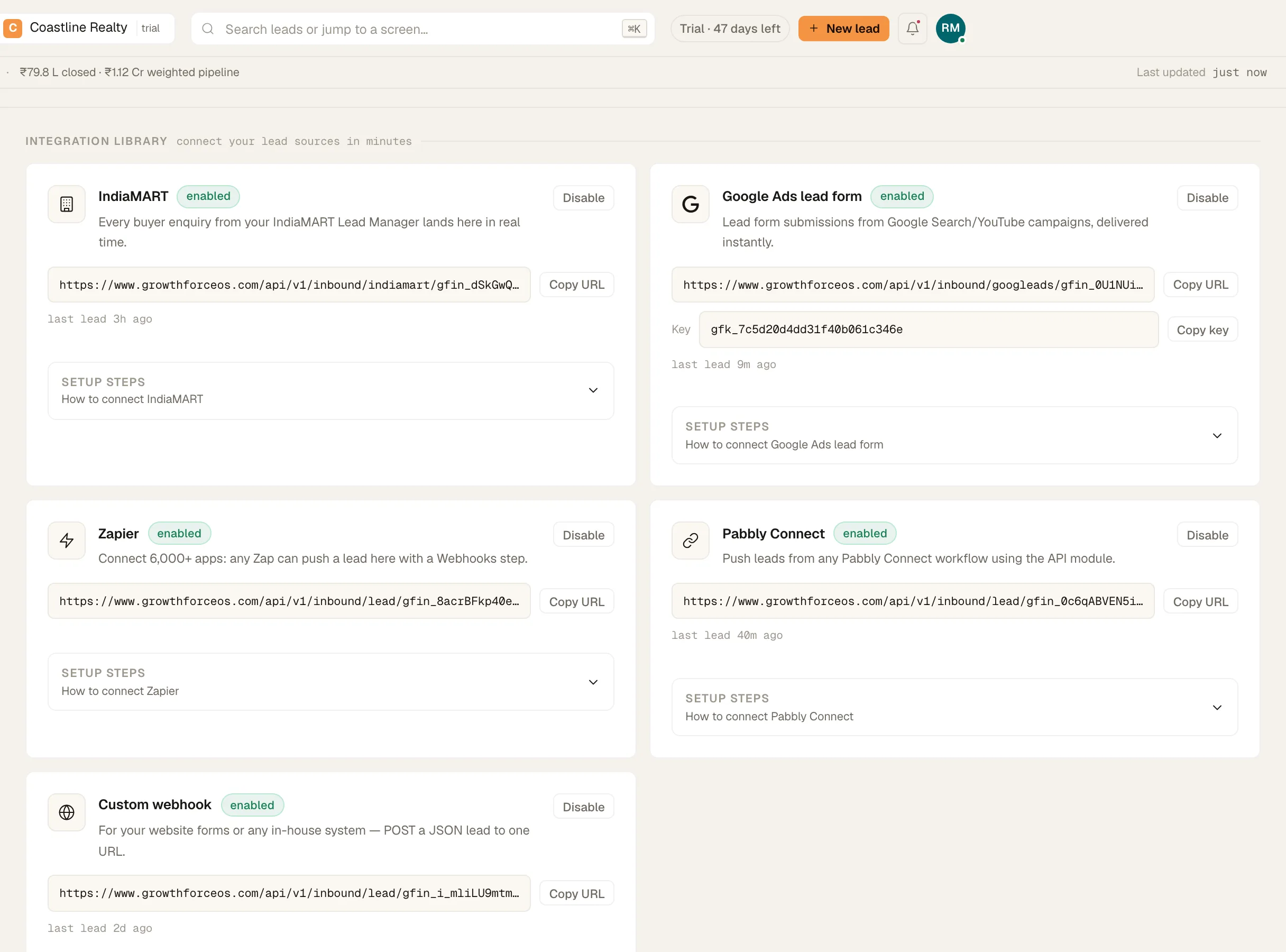
- Pin 1: 'Copy URL'
- Pin 2: 'Copy key'
The Google Ads lead form card: 'Copy URL' and 'Copy key'. Demo workspace. Step 2: Paste them into the lead form
In Google Ads, edit the campaign's lead form asset and choose webhook as the lead delivery option. Paste the URL and the key into the two fields.
Step 3: Send test data
Use Google's send-test-data button. A test lead appears in Leads › All leads under the source 'Google Ads' if everything is wired right.
Step 4: Enter your spend separately
This connection brings leads in. It doesn't read your ad spend. Type the month's spend in Setup › Lead sources under 'Monthly spend' and click 'Save', so Source ROI has something to divide by.
If something's off
Google says the test failed.
The key must match this workspace exactly. Copy both values again with 'Copy URL' and 'Copy key', and paste each into its own field.
Try GrowthForceOS
Trying GrowthForceOS? 60 days free, no card.
No card · 20 seats · 25,000 leads a month · Nothing switches off on day 60