Owner · 4 min read
Connect IndiaMART
What you'll get
Paste your URL into IndiaMART's Push API so every enquiry arrives deduplicated and routed.
Before you start
- Owner sign-in on the web.
- Your IndiaMART seller login, and the registered mobile number for the OTP.
- Who
- Owner
- Read time
- 4 minutes
Step 1: Switch on the IndiaMART card
Open Setup › Integrations. Under 'Integration library', find 'IndiaMART', click 'Enable', then 'Copy URL'. The card's 'Setup steps' repeat everything below.
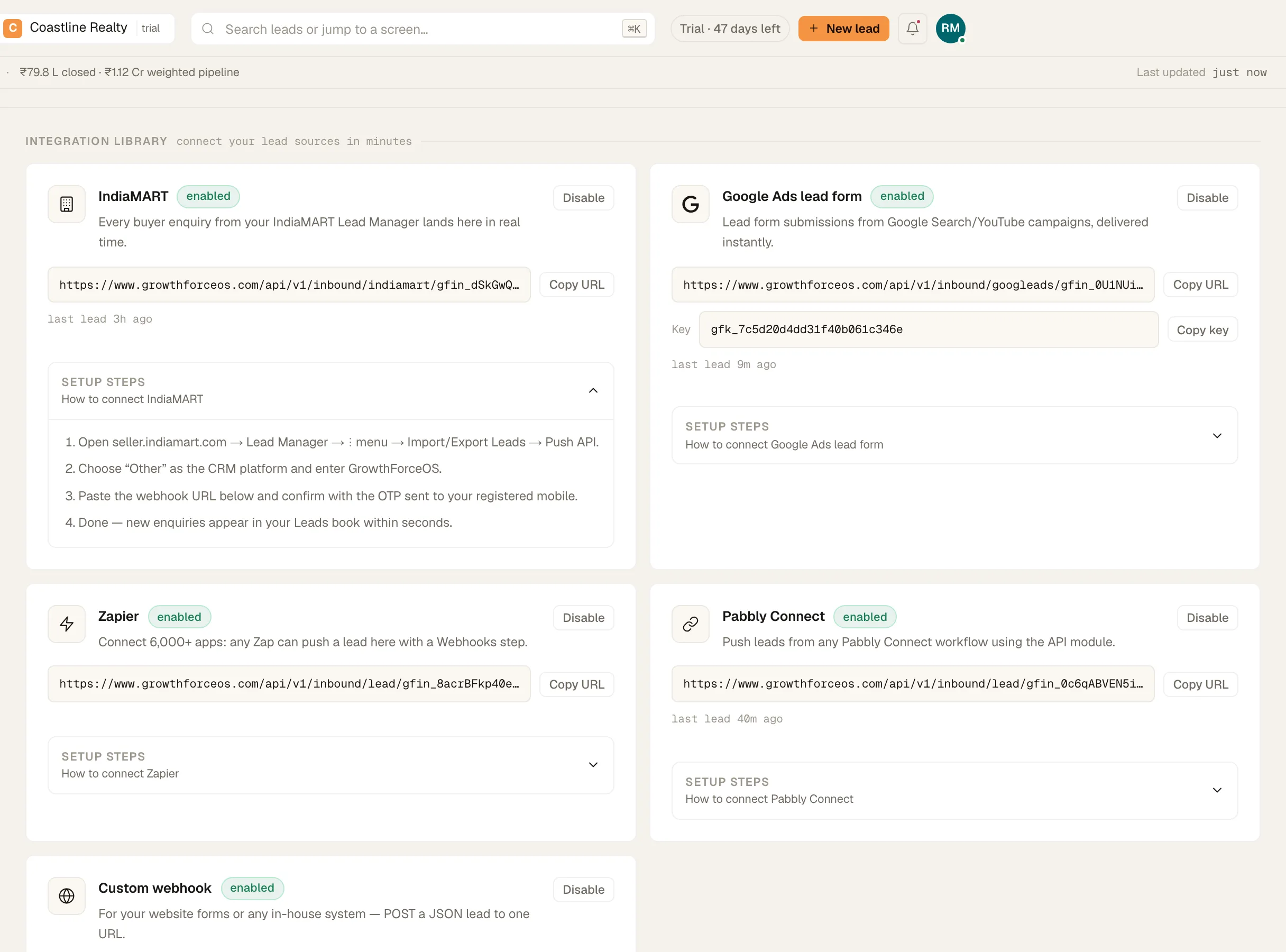
- Pin 1: 'Copy URL'
The IndiaMART card with its Push API steps. Demo workspace. Step 2: Find Push API in IndiaMART
Sign in at seller.indiamart.com and open Lead Manager. From the menu (⋮), open Import/Export Leads, then Push API.
Step 3: Paste the URL and confirm
Choose Other as the CRM platform and enter GrowthForceOS. Paste the URL, then confirm with the OTP IndiaMART sends to your registered mobile.
Step 4: Watch the next enquiry arrive
The next buyer enquiry lands in Leads › All leads under the source 'IndiaMART'. It's matched by phone against your book and routed like any other lead. If IndiaMART sends the same enquiry twice, the second delivery is ignored.
If something's off
Does this send anything back to IndiaMART?
No. The connection brings enquiries in only.
I disabled the card and enabled it again. Do I paste a new URL?
No. The URL stays the same when you disable and enable the card, so IndiaMART keeps working once it's back on.
The OTP didn't arrive.
IndiaMART sends it to the mobile number registered on your seller account. Check that number with IndiaMART.
Try GrowthForceOS
Trying GrowthForceOS? 60 days free, no card.
No card · 20 seats · 25,000 leads a month · Nothing switches off on day 60