Owner · 6 min read
Send Meta Lead Ads leads through Pabbly Connect or Zapier
What you'll get
Copy one URL from Integrations into a Pabbly or Zapier workflow, and every Facebook and Instagram lead form submission lands in your book.
Before you start
- Owner sign-in on the web. Only owners can switch an integration on.
- A Pabbly Connect or Zapier account, signed in to the Facebook account that manages your Page.
- The Facebook Page and the lead form you advertise with.
- Who
- Owner
- Read time
- 6 minutes
Step 1: Switch on the Pabbly Connect card
Open Setup › Integrations. Under 'Integration library', find 'Pabbly Connect' and click 'Enable'. Your workspace's own URL appears. Click 'Copy URL'. Treat the URL like a password: anyone who has it can add leads.
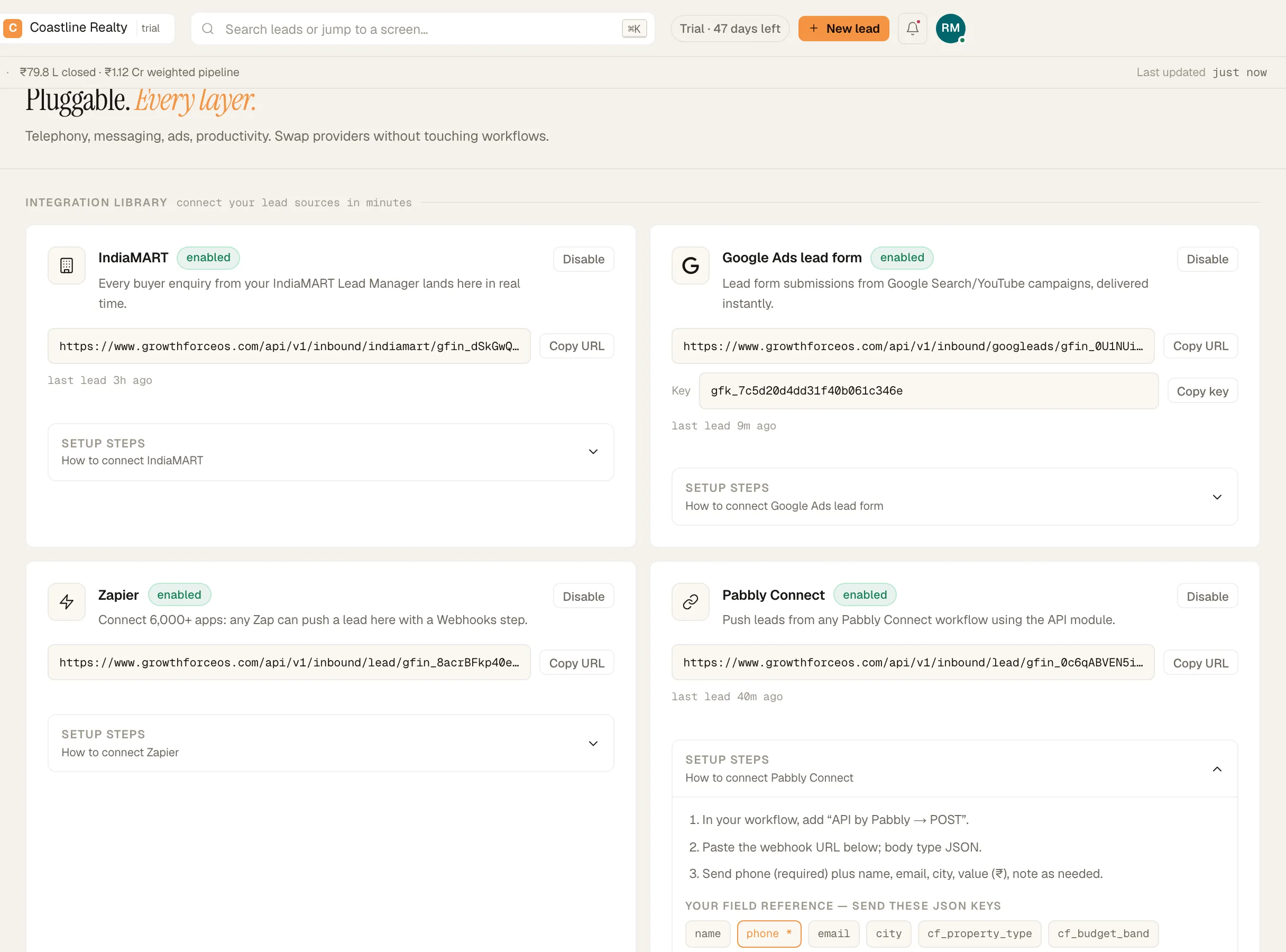
- Pin 1: 'Enable'
- Pin 2: 'Copy URL'
The integration library in Setup › Integrations. Demo workspace. Step 2: Start a workflow from your lead form
In Pabbly Connect, create a new workflow. Choose Facebook Lead Ads as the trigger app, connect the Facebook account that manages your Page, then pick the Page and the lead form. Pabbly's own screens change from time to time, so follow their wording for this part.
Step 3: Add the POST action
Add Pabbly's API action as the next step and set it to POST. The 'Setup steps' on our card call it 'API by Pabbly → POST'. Paste the URL you copied and set the body type to JSON.
Step 4: Map the fields
Send the phone number: it's the only required field. Field names are matched loosely, so the form's own keys usually work as they are: name or full_name, phone, phone_number, mobile or whatsapp, email, city, company, message and budget. A key that matches one of your custom lead fields fills that field too.
{ "full_name": "Khalid Rashid", "phone_number": "+971 50 000 0218", "email": "khalid@example.com", "city": "Dubai", "message": "2BHK, ready to move", "budget": "15,00,000" }Step 5: Send a test lead and find it
Run Pabbly's test, or submit your own form once. Open Leads › All leads. The lead is there with the source 'Pabbly Connect' and an owner from your routing rules.
Step 6: Or do the same with Zapier
On the 'Zapier' card, click 'Enable', then 'Copy URL'. In your Zap, use Facebook Lead Ads as the trigger. Our card's 'Setup steps' name the action: 'Webhooks by Zapier → Custom Request (POST)'. Paste the URL, set the payload type to JSON and map the same fields.
Step 7: Optional: send the source to a pipeline and enter spend
Open Setup › Lead sources. Leads from this route arrive under 'Pabbly Connect' or 'Zapier'. Choose the pipeline they land in, type the month's ad spend under 'Monthly spend' and click 'Save'. Source ROI divides by that number; ad spend isn't read from Meta.
What your reps see
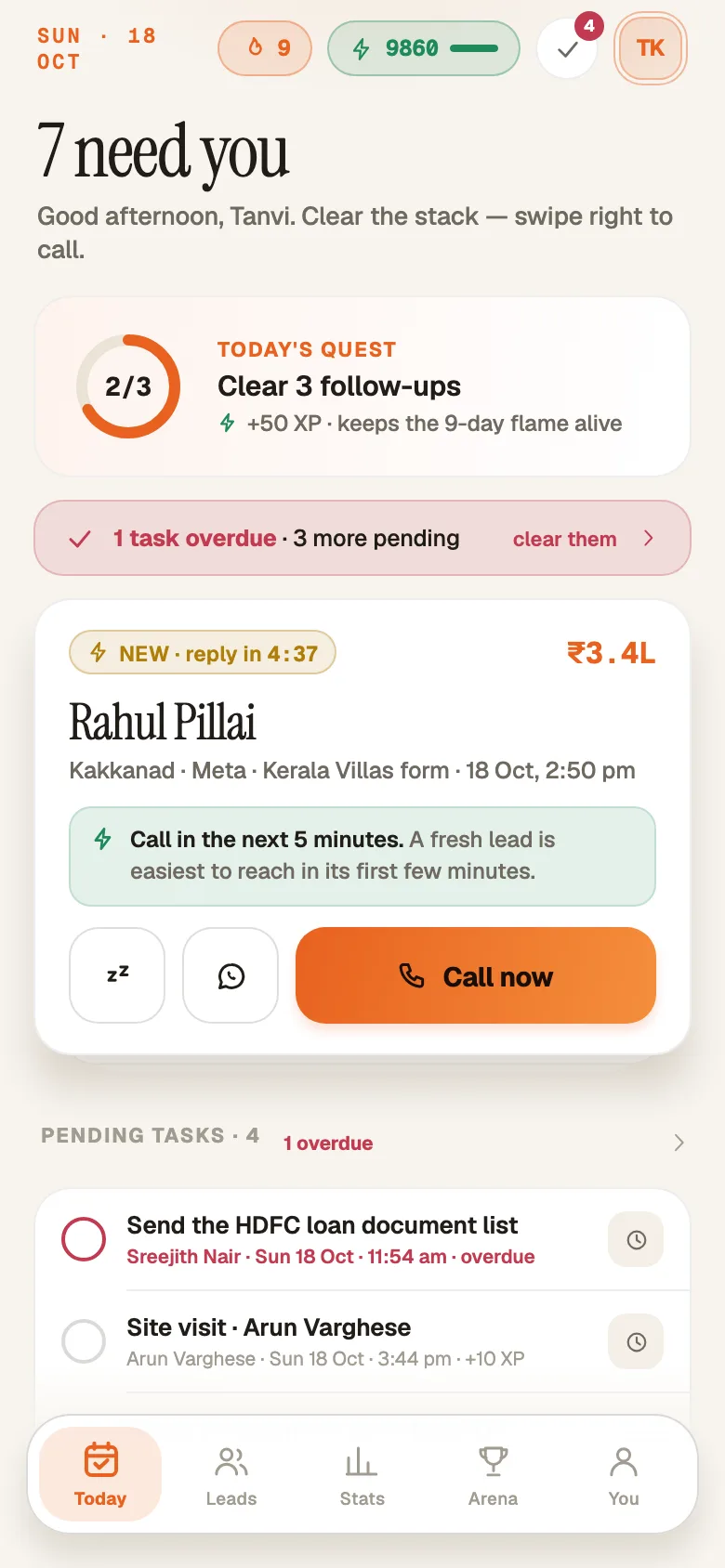
A fresh form lead on the rep's Today tab, with its five-minute reply clock running.
If something's off
The test lead never arrived.
Check that a phone number is mapped: a delivery without one is refused. Check the card in Setup › Integrations still says enabled. Then re-copy the full URL with 'Copy URL' and paste it again.
My test updated an old lead instead of adding a new one.
Leads are matched by phone number. A second submission from the same number updates the existing lead instead of doubling it. Test with a different number.
The test lead isn't in the list.
Test names such as 'aaaa' or '12345' look like spam, so they're set aside as junk. In Leads › All leads, click 'Show hidden', open the lead and click 'Restore from junk'.
Try GrowthForceOS
Trying GrowthForceOS? 60 days free, no card.
No card · 20 seats · 25,000 leads a month · Nothing switches off on day 60