Owner · 6 min read
Shape your pipeline, fields and tags
What you'll get
Rename stages, set win % and SLA, add a pipeline per product line, map sources, and add custom fields and tags.
Before you start
- Owner sign-in on the web.
- The stages your team already uses, written down in order.
- The extra details you want on every lead, such as budget or project.
- Who
- Owner
- Read time
- 6 minutes
Step 1: Rename stages and set the clocks
Open Setup › Pipelines. Each stage has a name, an 'SLA (min)' target and a win probability. Rename the stages to the words your team uses. Keep an SLA on New: it's the first-touch clock behind At risk. The win probability decides how much each open deal adds to your forecast.
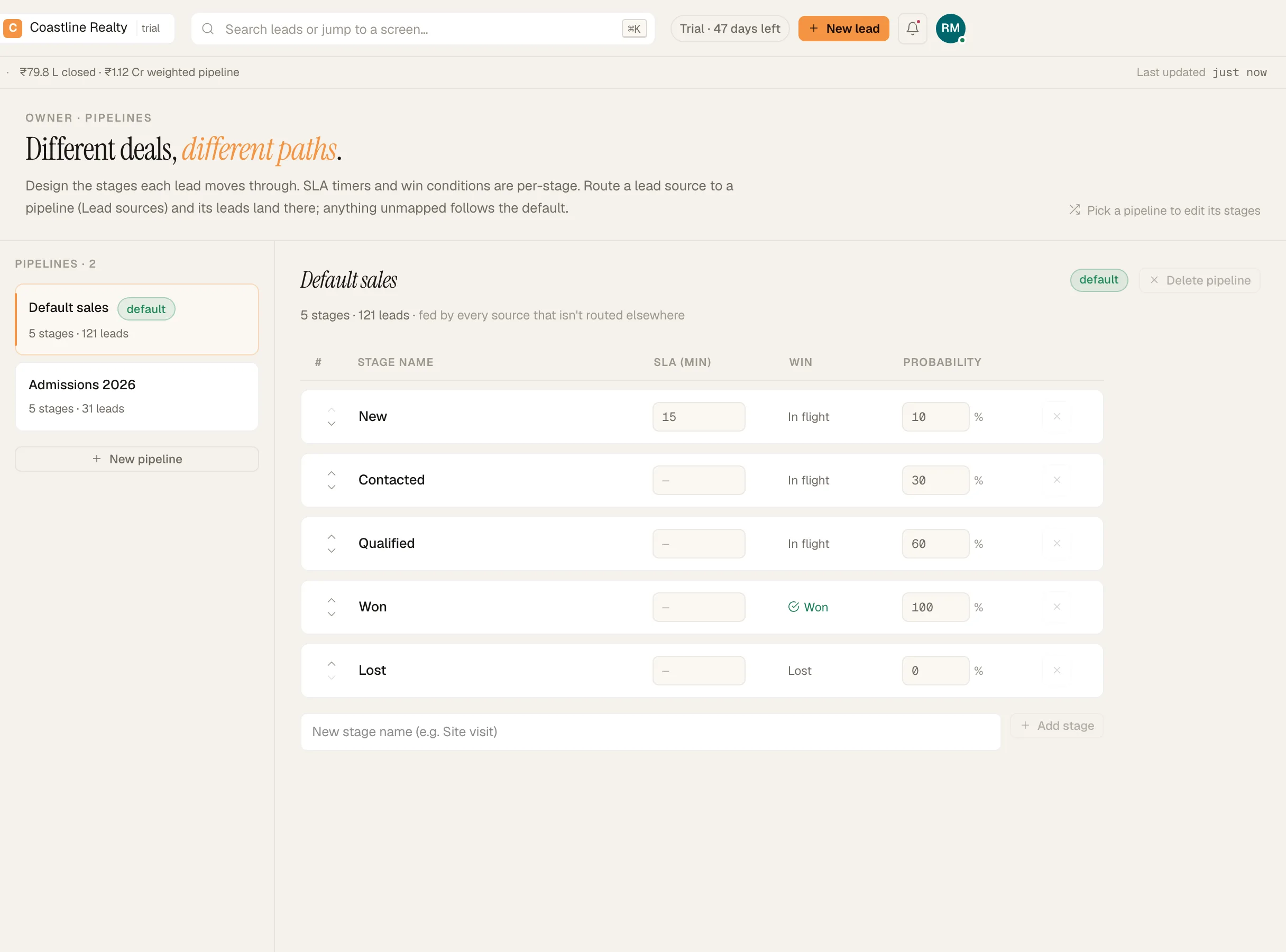
The stage editor: win % per stage and the 15-minute SLA on New. Demo workspace. Step 2: Add a pipeline per product line
Click 'New pipeline' if you sell two different things, such as villas and plots. A new pipeline starts with the same five stages and win probabilities, so its deals count in the forecast from day one.
Step 3: Send each source to its pipeline
Open Setup › Lead sources. For each source, choose the pipeline its new leads land in. Leave it on 'Default pipeline' to use your main one.
Step 4: Add custom fields
Open Setup › Lead fields. Under 'Custom fields · 0/20', add up to 20 of your own with 'Add field'. Tick 'Required' on the ones that matter. The quick-add form asks for required fields; leads from imports and integrations that miss one are kept and marked 'Incomplete'. A custom field also fills in by itself when an integration sends a key with the same name.
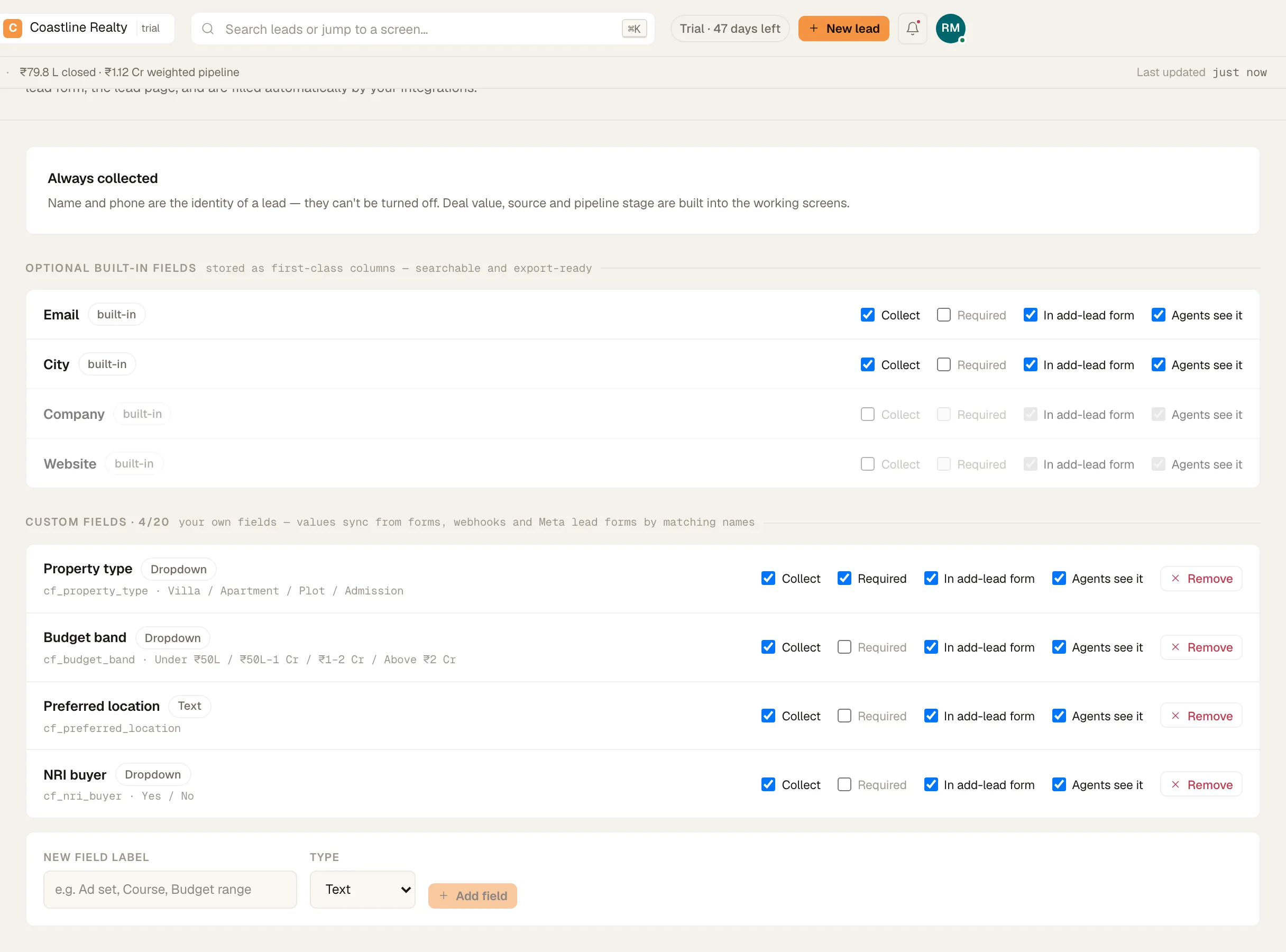
Lead fields: custom fields, one marked required. Demo workspace. Step 5: Add tags
Open Setup › Tags for labels your stages don't express, such as a project or a product. Renaming a tag updates every lead that carries it.
If something's off
My forecast says some deals aren't counted.
Those deals sit in a stage with no win probability. Give the stage one in Setup › Pipelines.
Leads from one source keep landing in the wrong pipeline.
Check that source's pipeline choice in Setup › Lead sources. It applies to new leads, not ones already in your book.
Try GrowthForceOS
Trying GrowthForceOS? 60 days free, no card.
No card · 20 seats · 25,000 leads a month · Nothing switches off on day 60