Owner · 4 min read
Send leads from any app with Zapier
What you'll get
Point a Webhooks by Zapier POST at your GrowthForceOS URL and map name and phone.
Before you start
- Owner sign-in on the web.
- A Zapier account with the app your leads come from already connected.
- Who
- Owner
- Read time
- 4 minutes
Step 1: Switch on the Zapier card
Open Setup › Integrations. Under 'Integration library', find 'Zapier', click 'Enable', then 'Copy URL'.
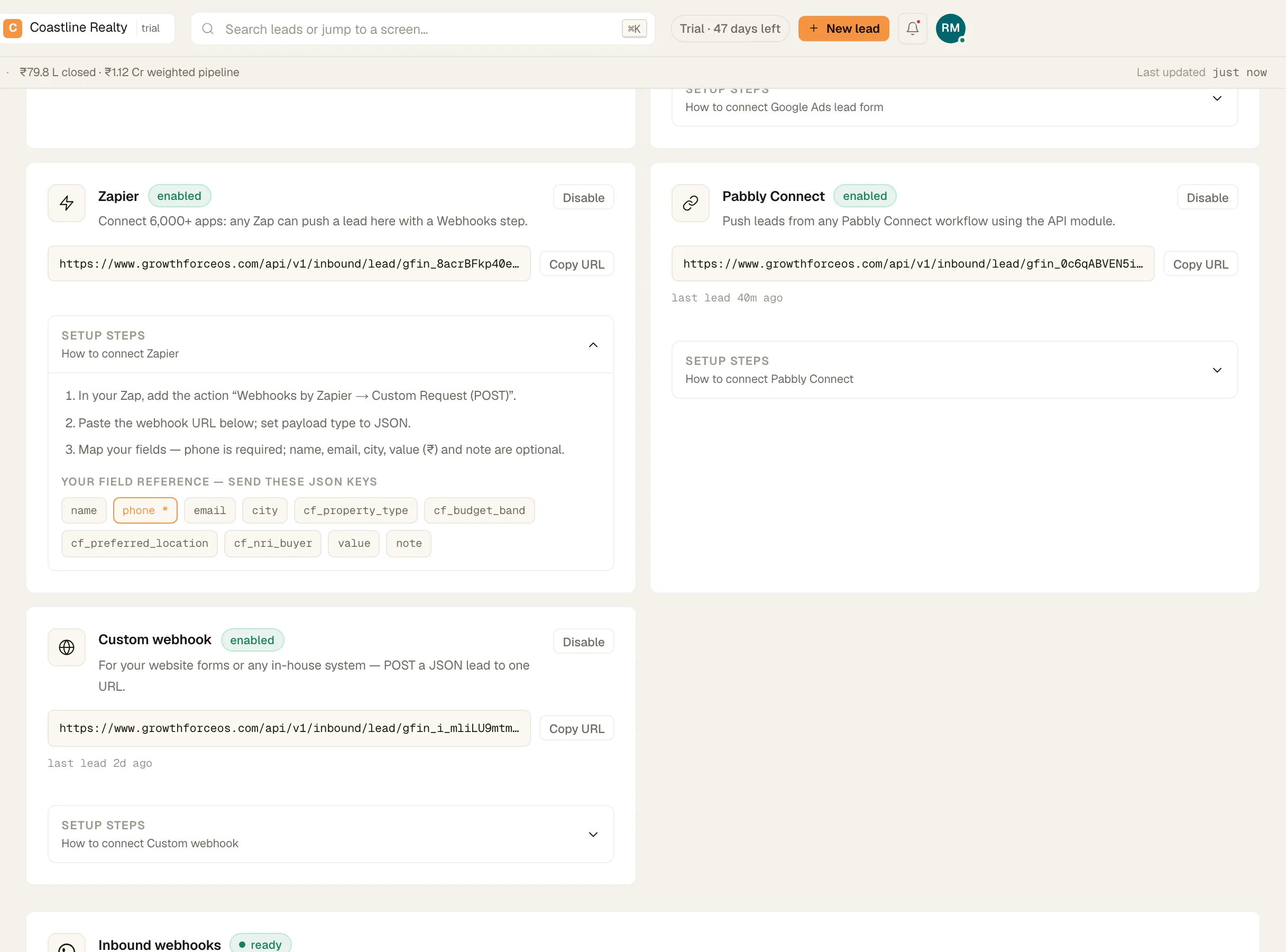
- Pin 1: 'Copy URL'
The Zapier card with its webhook URL. Demo workspace. Step 2: Build the Zap
Use the app your leads come from as the trigger. Add the action our card's 'Setup steps' name: 'Webhooks by Zapier → Custom Request (POST)'. Paste the URL and set the payload type to JSON.
Step 3: Map name and phone
Phone is required. Name, email, city, company, value and note are optional. Common aliases are accepted, such as full_name, mobile, whatsapp and message, so a Zap's default mapping usually works. Keys that match your custom lead fields fill them in. The card lists the exact keys for your workspace under 'Setup steps'.
Step 4: Test it
Run Zapier's test step. Open Leads › All leads and look for the lead with the source 'Zapier'. If the phone number already belongs to a lead, that lead is updated instead of a second one being made.
If something's off
Zapier shows a 400 error.
The body had no usable phone number, or it wasn't JSON. Map a phone field and set the payload type to JSON.
Zapier shows a 404 error.
The URL is incomplete, or the card is disabled. Re-copy it with 'Copy URL' and check the card says enabled.
Zapier shows a 429 error.
Either the workspace has reached its monthly lead limit (25,000 on the trial), or more than 120 deliveries arrived in a minute. Zapier retries on its own. Message us from Workspace › Help & support if your limit needs to change.
Try GrowthForceOS
Trying GrowthForceOS? 60 days free, no card.
No card · 20 seats · 25,000 leads a month · Nothing switches off on day 60