Rep / Manager · 3 min read
Meetings and site visits
What you'll get
Book a meeting as a task, get pinged 1 hour and 15 minutes before, then record whether it happened and what comes next.
Before you start
- Meetings are switched on once by an owner, in Setup › Automations › 'Meeting outcome' › 'Reps can book meetings'. The owner also names the tile, for example Site visit or Demo.
- Who
- Rep / Manager
- Read time
- 3 minutes
Step 1: Owner: switch meetings on
In Setup › Automations, find 'Meeting outcome' and tick 'Reps can book meetings'. Name it the way your team talks; it's 'Meeting scheduled' until you change it. The tile then appears next to Connected on the web and the phone.
Step 2: Book it from the call
After a call, pick the meeting tile and choose when it is. On the phone, tap 'Confirm — done in 2 taps'; on the web, click 'Book it'. The meeting becomes a task on the lead, so a later follow-up can't overwrite it.
Step 3: Get pinged before it starts
The rep gets a ping 1 hour and 15 minutes before: 'Meeting in 1 hour: …' and 'Meeting in 15 minutes: …', with the lead's name.
Step 4: Find upcoming meetings
On the web, open Today › Tasks. Managers see the team's in Floor › Tasks. On the phone, open Tasks.
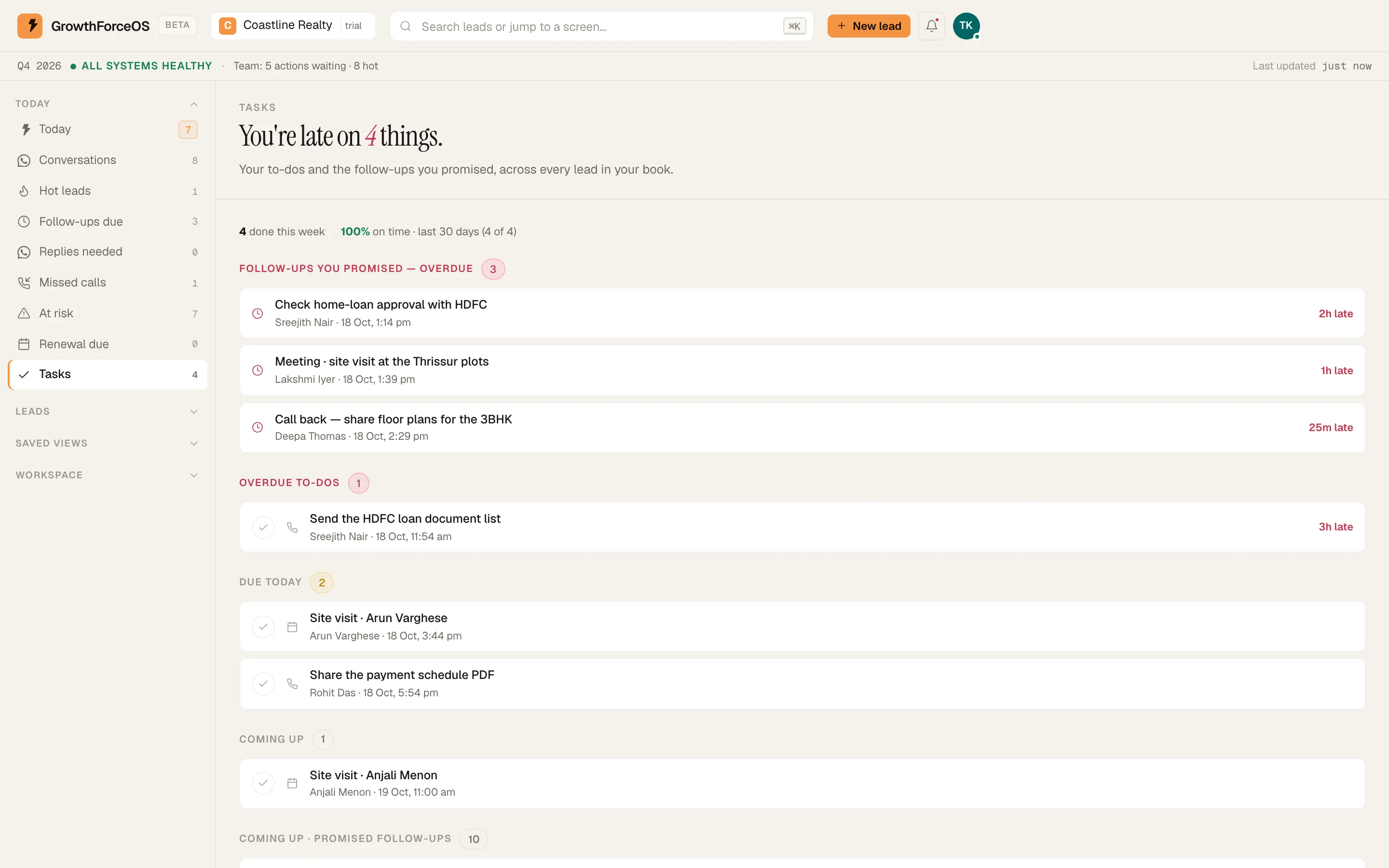
Tasks: a meeting today and follow-ups due. Demo workspace. Step 5: Say how it went
After the time passes, resolve it. On the phone: 'Happened — how did it go?' or 'Didn't happen'. On the web: 'Happened…', then 'Good — next step…', 'Another meeting…', 'Lost…' or won; or 'Didn't happen…' to re-book it.
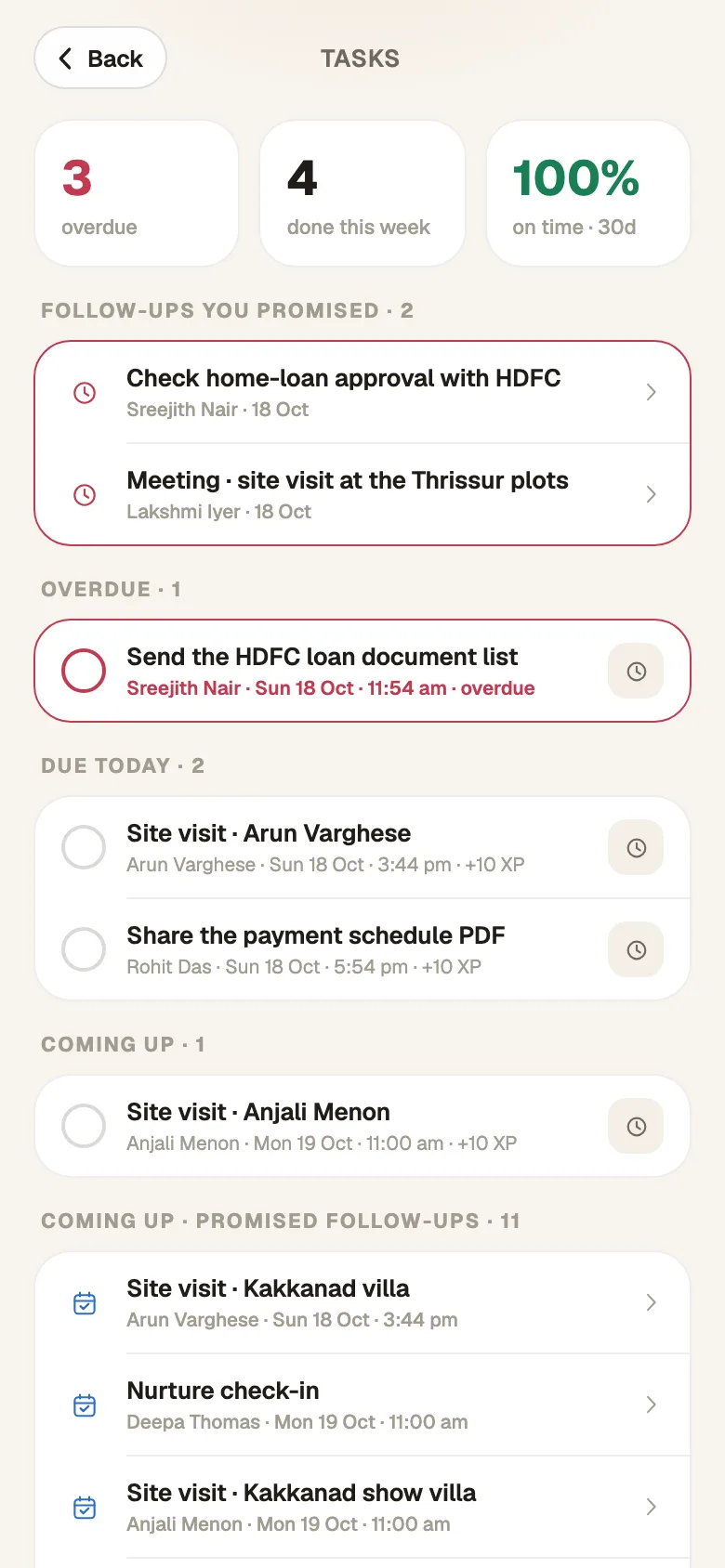
Tasks on Android: a meeting in 50 minutes. Demo workspace.
If something's off
There's no meeting tile after a call.
Meetings are off until an owner ticks 'Reps can book meetings' in Setup › Automations.
The meeting moved. Do I book a new one?
No. Choose 'Didn't happen…' and pick the new time. It's the same appointment, moved.
Try GrowthForceOS
Trying GrowthForceOS? 60 days free, no card.
No card · 20 seats · 25,000 leads a month · Nothing switches off on day 60